Passkeys vs. Passwords: Your Step-by-Step 2025 Switch Guide
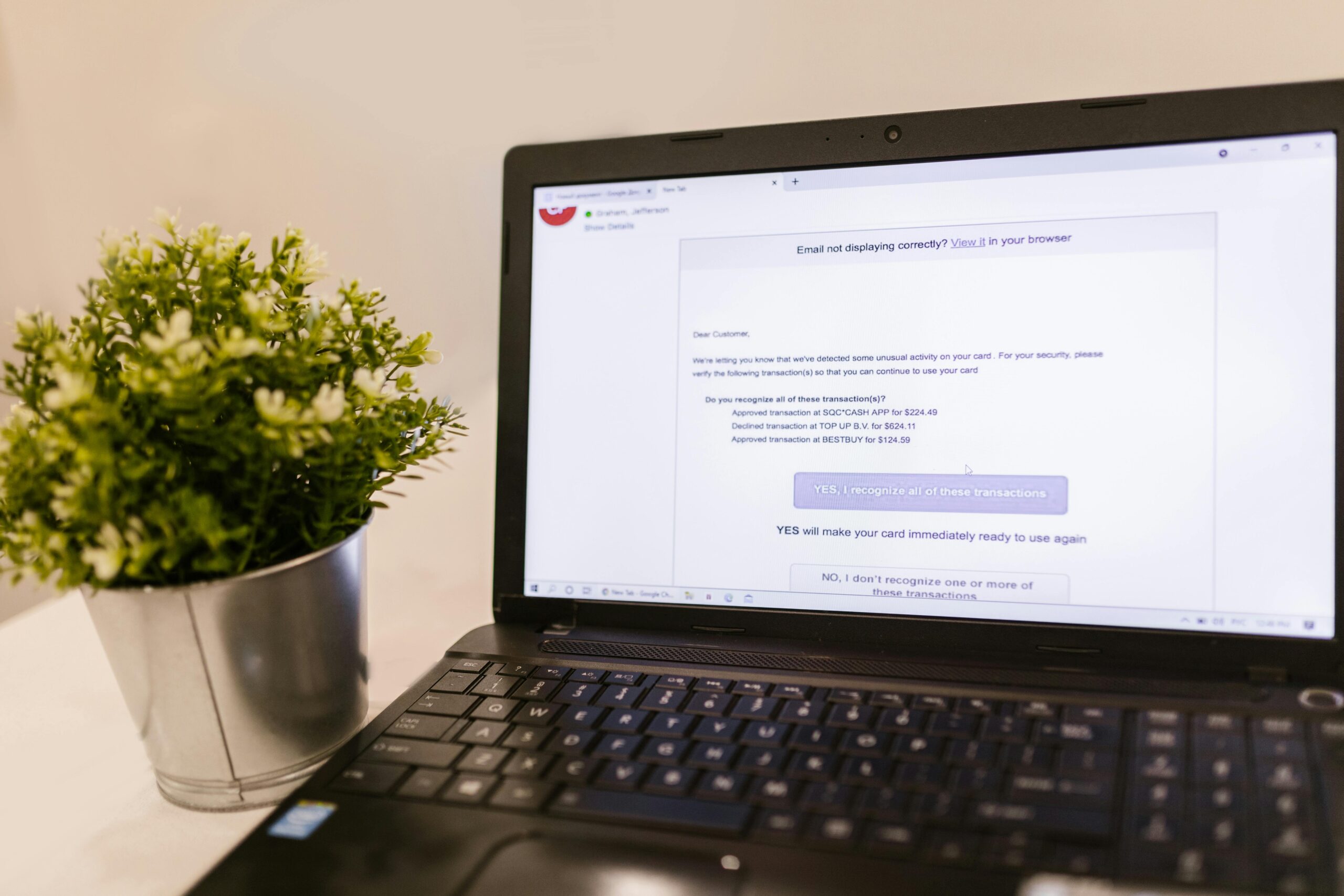
Passwords are failing—phishing kits bypass them, SIM swapping steals texted codes, and credential-stuffing bots try billions of leaked logins daily. Passkeys, built on public-key cryptography, are the defense that finally turns the tables. This guide demystifies passkeys, shows where they beat passwords (and where they don’t), and walks you through a safe, low-friction migration without locking yourself out.
Why Passwords Are Failing Now
Consumers and businesses continue to bleed money to online fraud, and weak or reused passwords sit at the center of many attacks. According to the FBI’s Internet Crime Complaint Center, Americans filed 880,418 complaints in 2023 with reported losses exceeding $12.5 billion, with Business Email Compromise alone accounting for $2.9 billion in losses. The FTC separately reported nearly $10 billion in consumer fraud losses for 2023—both indicators of how lucrative credential-based crime remains.
Meanwhile, phishing kits and adversary-in-the-middle tools intercept one-time passcodes and push-notification prompts. That’s why agencies like CISA now explicitly recommend phishing-resistant multi-factor authentication (MFA)—the category where modern passkeys shine.
Top 3 Threats to Watch
1. Phishing Kits That Bypass 2FA
What it is: Adversary-in-the-middle (AitM) phishing frameworks such as EvilProxy sit between a victim and a real login page to steal session cookies and OTP codes.
Why it matters: Even users with strong passwords and SMS or app codes can be tricked into handing over a valid session, giving attackers full account access until the session expires.
Example: Security reporting has documented EvilProxy being marketed to criminals specifically to defeat 2FA, and organizations have suffered breaches despite employees entering OTP codes correctly—proving that code-based MFA is not always enough.
2. MFA Fatigue and Prompt Bombing
What it is: Attackers bombard a user with endless push prompts hoping they’ll tap “Approve” just to make the notifications stop.
Why it matters: It exploits human factors rather than technical weaknesses. A rushed or exhausted person can be manipulated into approving a malicious login.
Case study: The 2022 Uber breach leveraged social engineering and MFA fatigue to gain internal access—an enduring lesson that not all MFA is created equal and that phishing-resistant methods are superior.
3. SIM Swapping and Text-Message Code Theft
What it is: Criminals persuade or bribe carrier staff to move your phone number to a SIM they control, capturing your SMS login codes.
Why it matters: If your 2FA relies on text messages, hijacking your number can be enough to break into your most sensitive accounts, including email and financial services.
How passkeys help: Passkeys don’t rely on codes sent over phone networks; they use device-bound or cloud-synced cryptographic keys that cannot be phished or SIM-swapped.
Practical Defense Guide (Step-by-Step)
Below is a structured, low-risk migration plan that upgrades your most important accounts first, preserves a safe fallback, and avoids lockouts.
- Step 1: Understand passkeys in one minute. A passkey is a pair of cryptographic keys. The private key lives in your device’s secure enclave or a hardware key; the public key sits with the website. To log in, the site proves it’s legitimate and your device signs a challenge. No shared secret travels over the internet, so there’s nothing to phish. Passkeys comply with FIDO2/WebAuthn standards and are classified by CISA and NIST as phishing-resistant authentication.
- Step 2: Inventory your critical accounts. Prioritize email, password manager, bank/brokerage, crypto exchanges, cloud storage, and workplace SSO. Your email is the recovery hub for most accounts—secure it first.
- Step 3: Prepare recovery before you change anything.
- Add a second device to your account’s recovery options (e.g., a spouse’s phone or a tablet you control).
- Generate and print backup codes for your most critical accounts. Store them in a fireproof safe.
- Get a hardware security key set (two keys recommended) if you want the strongest, most portable passkeys. Register both keys everywhere you can.
- Step 4: Turn on passkeys for your primary email first.
- Google Accounts: Go to Settings → Security → Passkeys or visit myaccount.google.com/security. Add a phone, computer, or hardware key as a passkey. Keep your existing password and OTP until your passkeys are fully tested.
- Apple ID: With iOS 17/macOS Sonoma or later, passkeys sync via iCloud Keychain. In Settings → Passwords, ensure iCloud Keychain is on; Apple prompts for passkey creation in supporting apps/sites. You can also register hardware keys for Apple ID.
- Microsoft Accounts: In Windows 11, Settings → Accounts → Passkeys lets you create device-bound passkeys; Microsoft also supports FIDO2 security keys and phone sign-in.
- Step 5: Add passkeys to financial accounts that support them. Many banks and brokerages are rolling out passkey support. In each account’s Security or Login settings, look for “Passkeys,” “Security Keys,” or “WebAuthn.” If unsupported, use app-based OTP instead of SMS, and set alerts for transactions and profile changes.
- Step 6: Expand to cloud storage, password managers, and social platforms.
- Password managers: Ensure your vault itself is protected with phishing-resistant options. Some password managers now support passkeys as a login factor and can store/replay passkeys to websites. If yours does, enroll passkeys and enable secure recovery (emergency kit, recovery contacts, or stored recovery codes).
- Cloud storage and productivity suites: Turn on passkeys or security keys for Google Workspace, Microsoft 365, Box, Dropbox, etc. For work accounts, follow your organization’s policies and register two keys.
- Social media: Where passkeys aren’t available, use app-based OTP and disable SMS 2FA when safe.
- Step 7: Keep a clean rollback path for 30 days. Do not delete your old factors until you’ve logged in from all your regular devices at least twice using passkeys. After 30 days without issues, remove SMS codes and unneeded backup methods to shrink your attack surface.
- Step 8: Set up smart backups so you can’t get locked out.
- Two hardware keys: Register both on critical accounts; store one off-site.
- Multiple device-bound passkeys: Add at least two devices per account (e.g., phone and laptop). For iCloud/Google ecosystem syncing, ensure account recovery is configured and tested.
- Printed backup codes: Keep them physically secure. Photographing them defeats the purpose.
- Step 9: Travel and device-loss readiness.
- When traveling: Bring one hardware key; leave the spare at home. Disable SMS roaming where feasible.
- If you lose a phone: Use your second device or hardware key to revoke the lost device’s passkeys in account settings. Then re-enroll on the replacement device.
- Step 10: Monitor for intrusions. Turn on sign-in alerts, review active sessions monthly, and enable automatic logouts on new sign-ins when available. If a site offers device naming for passkeys, label them clearly (e.g., “Jane iPhone 15 Pro,” “Work Laptop”).
Passkeys vs. Other MFA: What Changes, What Doesn’t
Passkeys vs passwords: Passwords are shared secrets; passkeys are asymmetric keys. With passkeys, there’s nothing to steal via phishing because the private key never leaves your device and only signs challenges from the real website origin.
Passkeys vs SMS codes: SMS is vulnerable to SIM swapping, interception, and social engineering. Passkeys are immune to SIM attacks because they don’t rely on phone numbers or texted codes.
Passkeys vs app-based OTP: OTP apps are better than SMS but still phishable via AitM proxies that relay OTPs in real time. Passkeys tie the login to the website’s exact domain and cryptographic challenge, blocking AitM.
Passkeys vs hardware security keys: Hardware keys are essentially portable, high-assurance passkeys you can carry on a keychain. For maximum portability and strong phishing resistance, use two hardware keys as a universal fallback—especially if you maintain accounts across multiple ecosystems or need access without your primary phone.
Common Misconceptions (and Truths)
- “If I lose my phone, I’m locked out.” Not if you set up at least two authenticators per account (a second device and a hardware key), plus printed recovery codes.
- “Passkeys only work in one browser.” Passkeys work across modern browsers and platforms via the WebAuthn standard; syncing within ecosystems (iCloud, Google, Microsoft) improves convenience.
- “Sites don’t support passkeys.” Support is spreading fast. Google, Microsoft, Apple, PayPal, eBay, Shopify, and many password managers already support them, with more banks and SaaS apps joining monthly.
- “My company uses SSO; I’m covered.” Ensure your SSO itself is protected with phishing-resistant factors. If your identity provider allows FIDO2/security keys or passkeys, enroll them and require them for privileged roles.
Policy and Standards: Why Experts Call Passkeys “Phishing-Resistant”
CISA’s guidance explicitly recommends phishing-resistant MFA—meaning authentication that cannot be easily tricked by spoofed sites or relayed challenges. FIDO2/WebAuthn passkeys meet that bar because they cryptographically bind the login to the genuine website origin. NIST’s Digital Identity Guidelines (SP 800-63B) similarly describe authenticator types and assurance levels, with FIDO-class authenticators recognized for their resilience to phishing.
Real-World Signals and Statistics
- Scale of the problem: The FBI’s IC3 received 880,418 complaints in 2023 with over $12.5 billion in reported losses; Business Email Compromise accounted for approximately $2.9 billion of that total.
- Fraud growth: The FTC reports consumers lost nearly $10 billion to fraud in 2023, up year over year—underscoring the need to move beyond passwords and SMS codes.
- Technique shift: Phishing kits like EvilProxy commoditize AitM attacks, purpose-built to defeat code-based MFA—precisely the gap passkeys close.
Recommended Tools/Resources
Use official resources when you enroll passkeys and set recovery options.
- CISA: Implementing Phishing-Resistant MFA — Plain-language guidance on strong authentication choices.
- NIST SP 800-63B — The U.S. standard for digital identity assurance and authenticator types.
- Google Account Security — Manage passkeys, recovery options, and alerts.
- Apple: About Passkeys — How passkeys sync via iCloud Keychain and how to enroll.
- Microsoft Account & Windows Passkeys — Set up passkeys in Windows and your Microsoft account.
- BleepingComputer: Google makes passkeys the default — Coverage of passkeys becoming the default sign-in for Google accounts.
- KrebsOnSecurity: EvilProxy — How AitM phishing kits defeat OTP-based MFA.
Mini-Checklist: A Safe 2-Week Migration Plan
- Day 1: Secure email with passkeys; add two devices and a hardware key. Print backup codes.
- Day 3: Convert bank/brokerage and cloud storage to passkeys or app-based OTP if passkeys aren’t yet supported.
- Day 5: Enroll passkeys for password manager and major shopping/financial apps.
- Day 7: Label devices and revoke any unfamiliar sessions; turn on sign-in alerts everywhere.
- Day 10: Remove SMS as a factor where safe; keep app-based OTP or hardware keys as backup.
- Day 14: Test recovery (sign in with your backup key and backup codes). Confirm all critical accounts have at least two phishing-resistant authenticators.
Troubleshooting and Edge Cases
- Site doesn’t offer passkeys yet: Use app-based OTP (TOTP) instead of SMS. Bookmark the real login page and consider a URL warning extension to reduce phishing risk.
- Shared business accounts: Avoid shared passwords. Use your SSO with individual identities and register multiple security keys per role if needed.
- New phone, no backup: Use printed recovery codes or your hardware key to sign in, then re-enroll passkeys on the new device. If you lost all factors, be prepared for a longer identity verification process with the provider.
- Multiple ecosystems: If you use both Apple and Windows/Android, hardware keys provide cross-platform passkeys that don’t depend on any single vendor’s cloud.
Conclusion
Passwords and code-based MFA had a long run, but attackers have industrialized phishing and SIM-swapping. Passkeys change the math with cryptography that resists these tactics by design. Move your most critical accounts first, add redundant authenticators, and test your recovery paths. Done right, the switch to passkeys is one of the rare security upgrades that makes your life easier and your accounts far safer.